How to Fix No Internet Connection on Windows 11
This guide is a practical, ordered fix for No Internet Connection on Windows 11 running Windows 11. Start with the least destructive checks, then software repairs, and only then a backup-and-reset. Each numbered step includes a simple diagram so you can match what you see on screen. Steps target Windows 11. Windows 10 and 11 label a few panes differently (e.g. Update & Security vs Windows Update) — use Settings search if a path has moved.
Who this guide is for
- Primary device: Windows 11
- Software family: Windows 11
- Brand: Microsoft
- Also useful on Windows 10 when menu names match (use Settings search).
Editor notes before you start
- This guide is written for Windows 11 on Windows 11. Sister Microsoft models are often similar, but menu labels can move after an update — use Settings search when a path differs.
- Capture any stop code or exact error text before you change anything — it is the fastest way to tell a driver fault from a failing disk. Windows 10 paths are usually under Update & Security instead of Windows Update.
- We keep these guides intentionally focused: fewer pages, clearer steps, and honest stop-points before unsafe hardware work.
What you will need
- 10–15 minutes without rushing
- Your device passcode / password
- Your Wi‑Fi name and password
- Access to the router (and modem if separate)
Before you start
- Save any open work on Windows 11 if the device is still responsive.
- If you have not backed up recently, start a quick cloud backup before deeper resets.
- Work through the steps in order; skip ahead only if a step clearly does not apply.
Symptoms
- Wi‑Fi connects, then drops every few minutes without moving rooms.
- Other phones or laptops on the same router stay online.
- You may see “Connected, no internet” or repeated password prompts.
Common causes
- Corrupt network adapter driver
- Wrong DNS or proxy settings
- Wi‑Fi adapter disabled in Device Manager
- ISP outage or router DHCP exhaustion
Step-by-step fix
Toggle and rejoin Wi‑Fi cleanly
Turn Wi‑Fi off for 10 seconds, then on. Forget the SSID and rejoin via Settings → Network & internet with the correct password. Prefer 5 GHz when you are close to the router; use 2.4 GHz through thick walls.
Power-cycle the network path
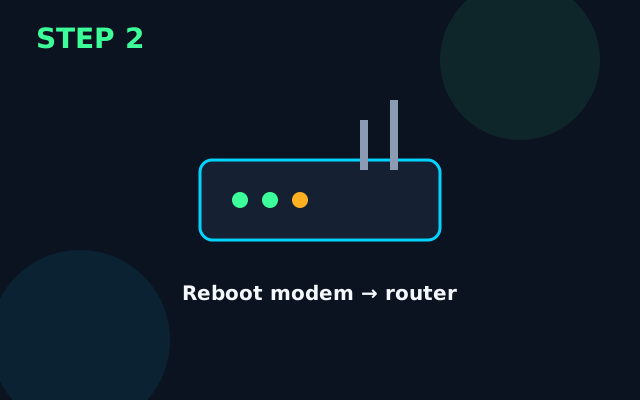
Restart Windows 11. Unplug the modem (if separate) for 2 minutes, power it on, wait until sync lights settle, then power the router, wait 2 minutes, then reconnect Windows 11.
Reset the Windows network stack
In Settings → Network & internet open Advanced network settings → Network reset, or run `netsh winsock reset` from an admin Command Prompt, then reboot.
Install available updates
Open Settings → Windows Update, install patches, reboot, then check Optional updates for drivers.
Reset network settings (keeps photos and apps)

Reset the network stack from Settings (Windows key + I) / Settings → System → Recovery → Reset this PC before considering a full wipe.
Deeper isolation before erase
Run a clean boot, check Device Manager for warning icons, and note whether the fault is immediate (often drivers/hardware) or after minutes (often heat or a background service).
Last resort: backup then reset
Back up files. Use Settings → System → Recovery → Reset this PC with “Keep my files” first. Only choose a full wipe if the fault survives. After reset, test clean before reinstalling every old app.
What success looks like
Windows 11 stays connected through a web page load and a short video stream without dropping.
Prevention tips
- Reboot the router monthly and after ISP engineer visits.
- Keep a written note of the admin password somewhere safe offline.
- Stop DIY if you smell burning, see liquid damage indicators, or the chassis is swollen.
When to get professional help
Stop DIY if you smell burning, see liquid damage, notice a swollen battery, or if Windows 11 still fails after a clean backup-and-reset. Physical damage and board-level faults need professional service.
FAQs
Will fixing No Internet Connection on Windows 11 delete my data?
Steps before the final factory reset keep your photos and apps. Only a full erase removes personal data — back up first.
How long should the No Internet Connection fix take on Windows 11?
Most people finish the non-destructive steps in about 20 minutes. Updates and full resets take longer — leave the device on charge.
Should I reset network settings for Windows 11?
Yes, if forgetting the SSID and rebooting the router did not help. You will need to re-enter Wi‑Fi passwords; photos and apps stay put.
When should I stop DIY on Windows 11?
Stop if you see swelling, burning smells, liquid damage, or if a clean reset does not help. Continuing can risk data loss or unsafe battery handling.